🧙 Exercise 1: Connect to Your Magical LLM
🎯 Exercise Overview
Welcome to your first spell in the Testus Patronus journey! In this exercise, you'll connect your Dify instance to a powerful Azure-hosted Large Language Model (LLM), which will become the core of your AI assistant.
✨ This is the foundation of your Retrieval-Augmented Generation (RAG) assistant. Without a working LLM, the magic won't flow.
🚀 What You'll Build
- Connect to Azure-hosted GPT models
- Configure both LLM and embedding models
- Create your first AI workflow
- Test the complete workflow
📋 Step-by-Step Checklist
🎯 Exercise Checklist
⏱️ Estimated Time: 15-20 minutes | 🎯 Goal: Working AI workflow with Azure LLM
🛠️ Step 1: Launch Your Dify Instance
📋 What You'll See
You'll be redirected to a personalized portal with your credentials:
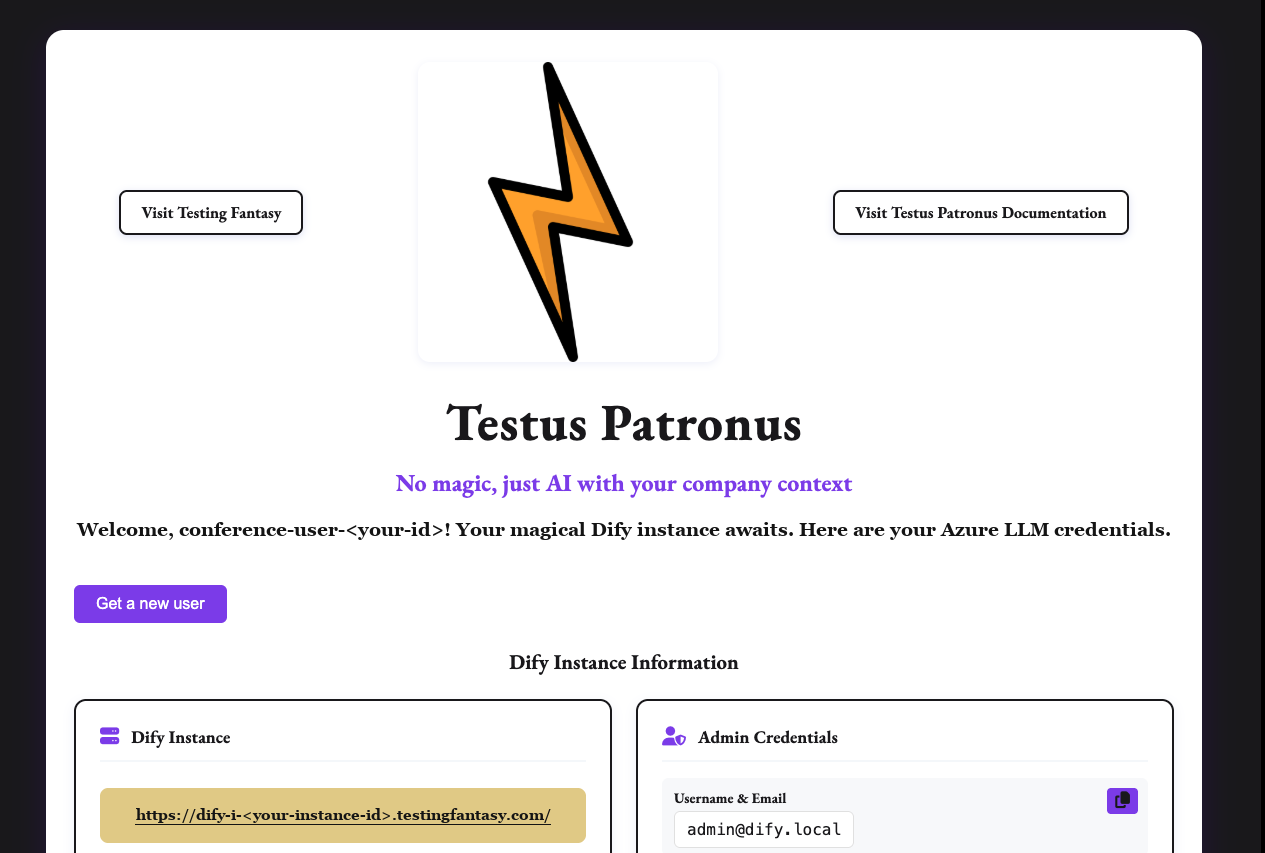
📋 This Page Contains:
- Dify Instance - The URL of your personal Dify instance
- Admin Credentials - The username (
admin@dify.local) and password of the admin account that was already created for you - LLM Models - Azure credentials for GPT-3.5 Turbo, Embeddings 3 Large, and GPT-4o
- Classroom Local Model - Credentials for the optional Exercise 1B, when your session provides one
- Session Reminder - Instance is ephemeral (save your work!)
🧠 Pro Tip: Keep this tab open during the session for easy copy/paste access to your credentials.
🛡️ Step 2: Sign in to Dify
📋 Sign-in Overview
Your Dify instance is already initialized with an admin account. You don't need to create one: sign in with the credentials from the portal.
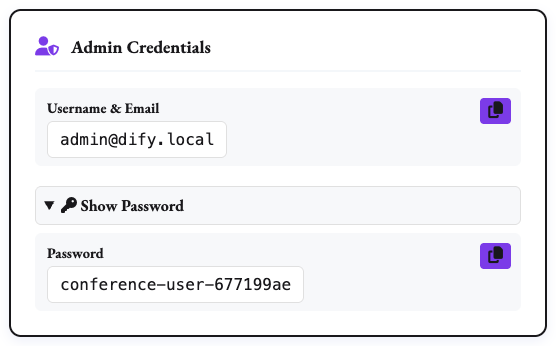
🔑 Step 2.1: Copy Your Admin Credentials
In the portal's Admin Credentials card, use the copy buttons to copy the Username & Email and the Password. If the password is hidden, click Show Password first.
🌐 Step 2.2: Open Your Dify Instance and Sign In
- Click the link in the portal's Dify Instance card.
- On Log in to Dify, paste the email address and password, then click Sign in.
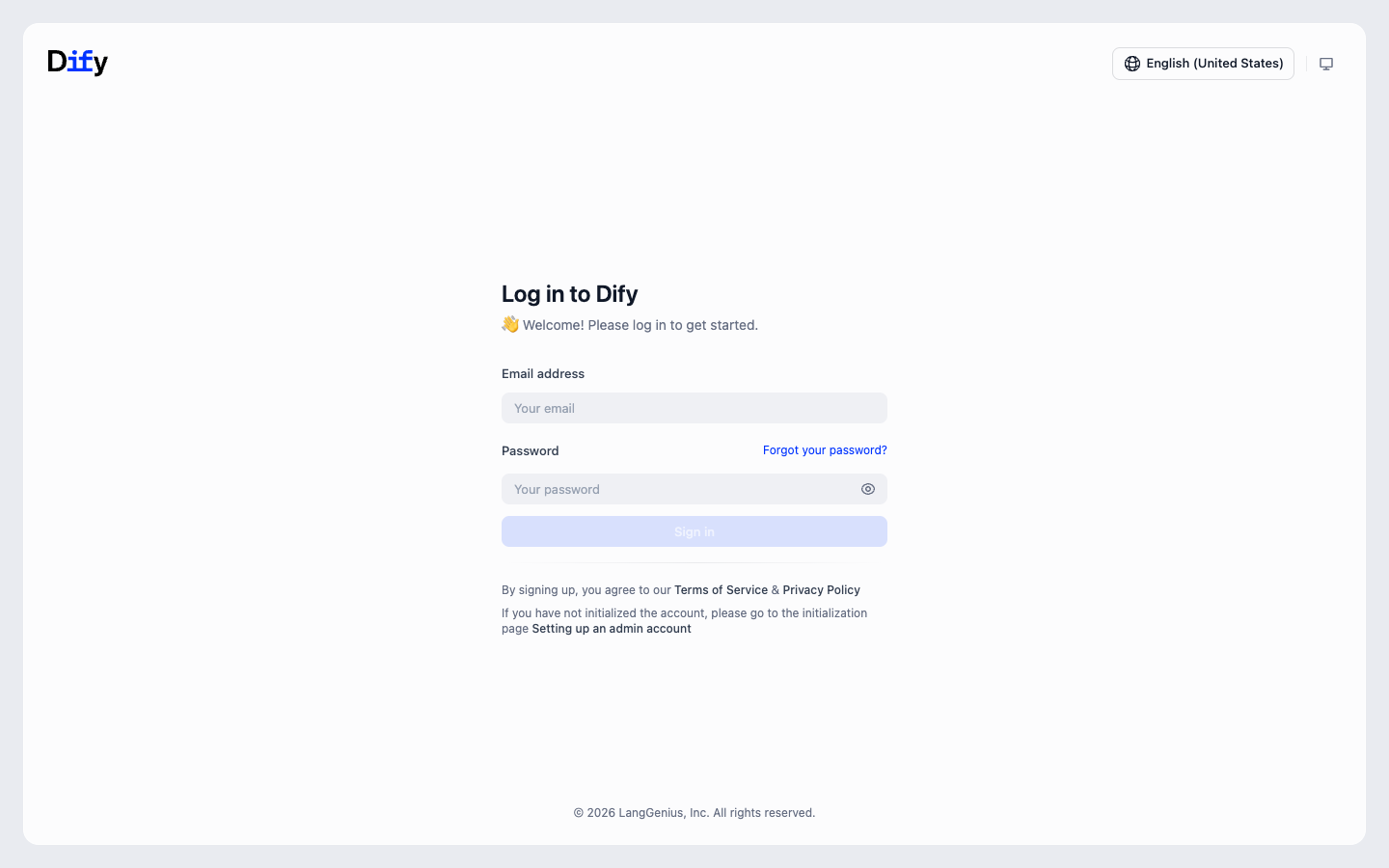
🧠 Pro Tip: If the page appears in another language, switch it to English with the language selector in the top-right corner of the sign-in page. The screenshots in this workshop use English.
🧪 Step 3: Explore Dify
After signing in you land on Home, which lists ready-made templates. Navigation lives in the left sidebar.
🗂️ Explore Dify's Main Sections
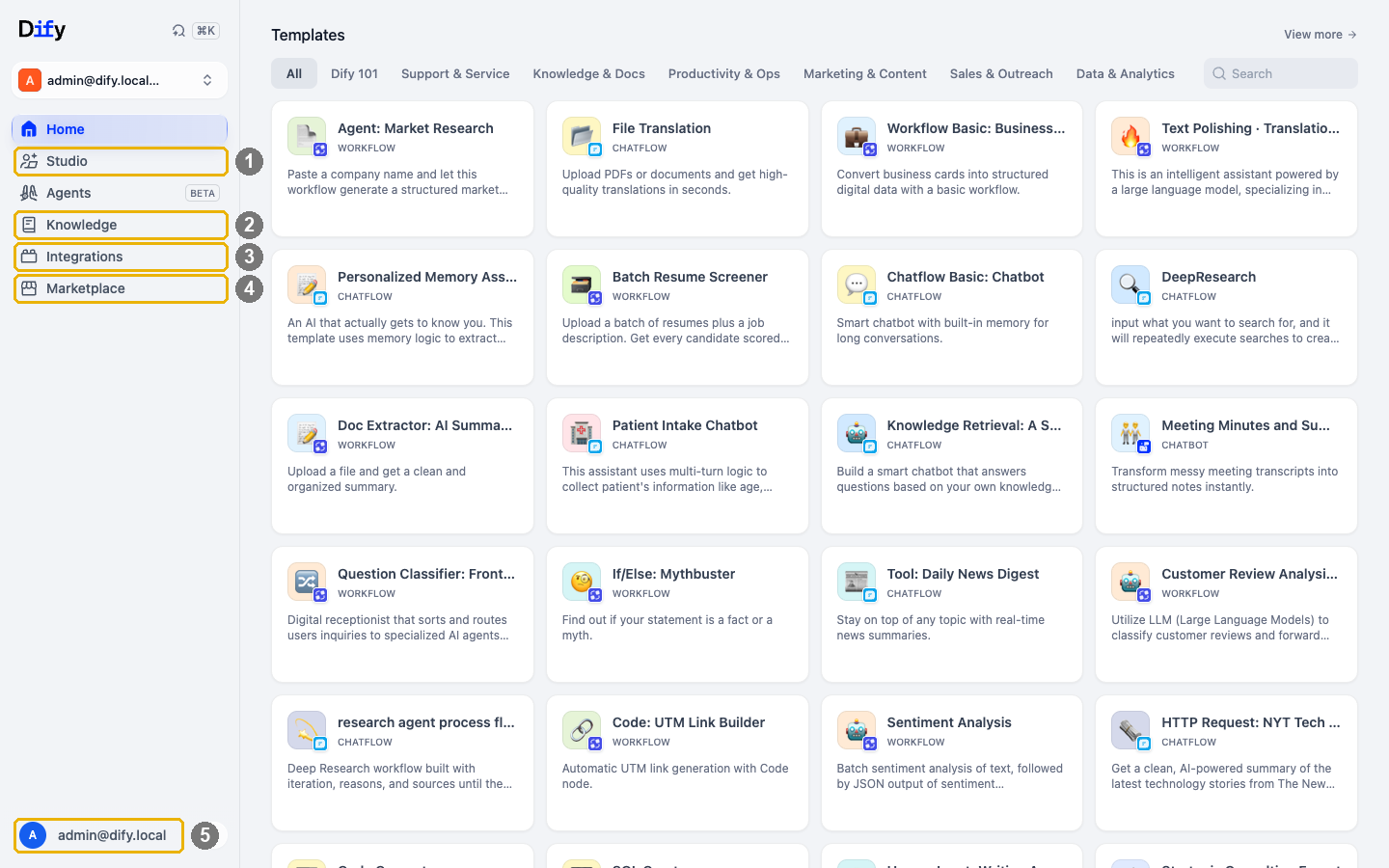
🎯 Main Sections Overview
1️⃣ Studio: Design and manage your apps (workflows and chatflows) using visual blocks.
2️⃣ Knowledge: Upload documents your assistant can reference—perfect for product specs, requirements, and test cases.
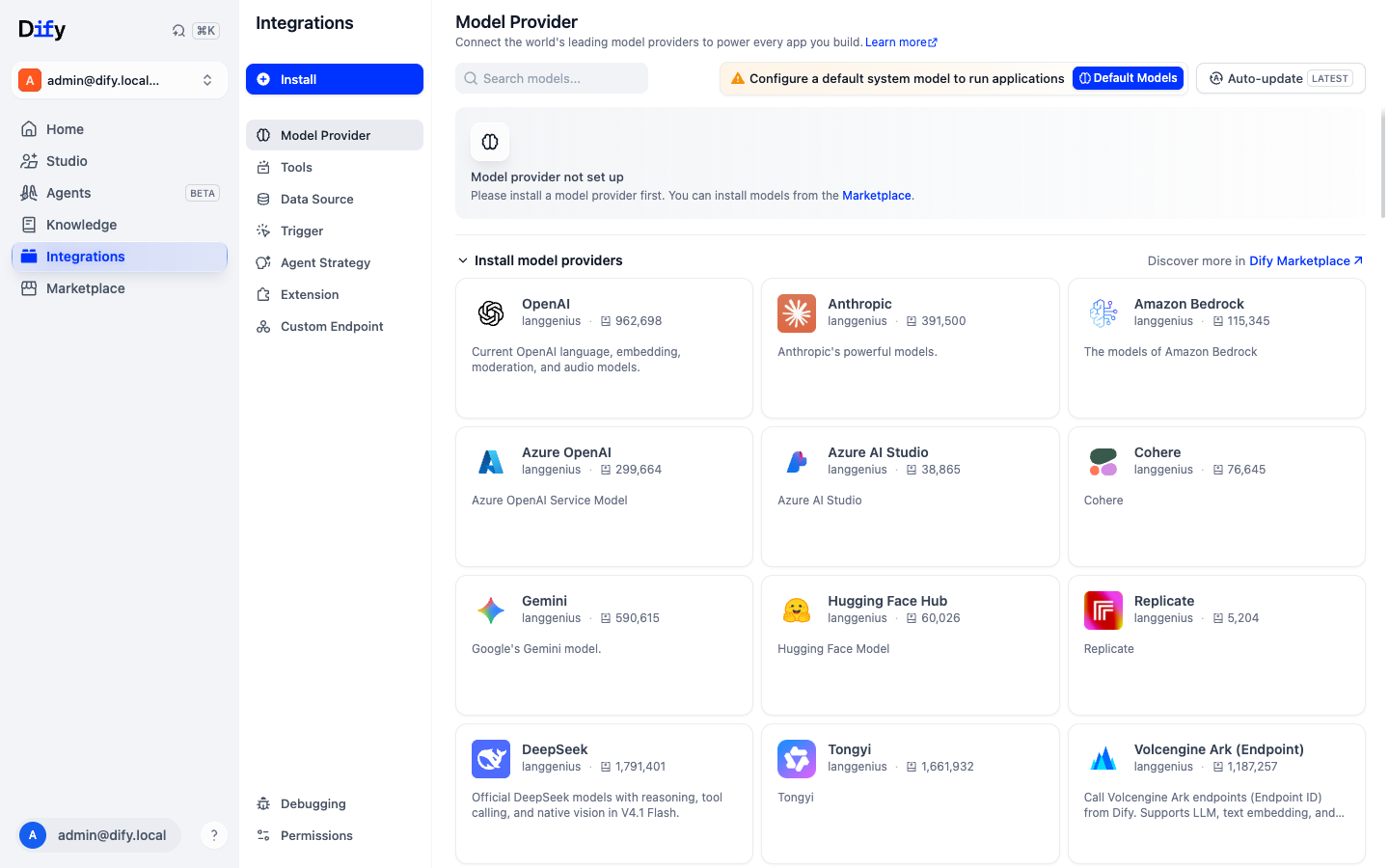
3️⃣ Integrations: Model providers, tools, data sources, and triggers. This is where you configure your LLM.
4️⃣ Marketplace: Browse and install plugins such as model providers and tools.
5️⃣ Account menu: Account, preferences, appearance, and log out.
🎯 Next: Open Integrations → Model Provider
- Click "Integrations" in the left sidebar
- "Model Provider" opens by default. It's the first item in the Integrations menu
🔗 Step 4: Configure the Azure GPT LLM
Now let's wire your Dify to use Azure-hosted GPT models.
1. Install Model Provider
On Integrations → Model Provider, find the Azure OpenAI provider card under Install model providers.
Hover the Azure OpenAI card, click Install, then confirm with Install in the dialog. The provider moves to Configuration required with an Add Model button.
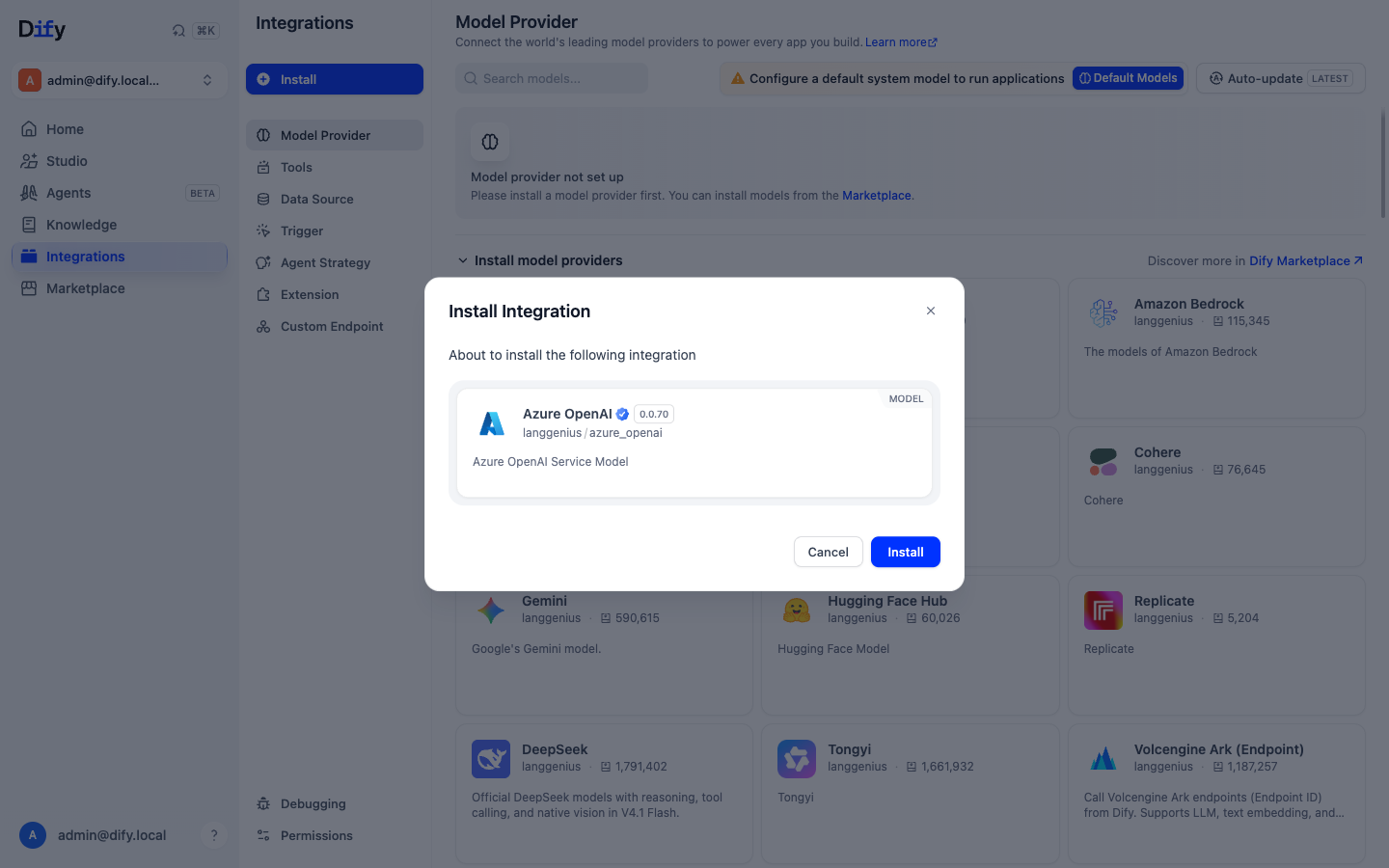 Screenshot: Installing Azure OpenAI service
2. Add a GPT-3.5 LLM
Use the credentials provided earlier to configure the model:
🔧 Configuration Steps
Add models to your Azure OpenAI Service and configure using the provided credentials.
📸 Add Model Interface
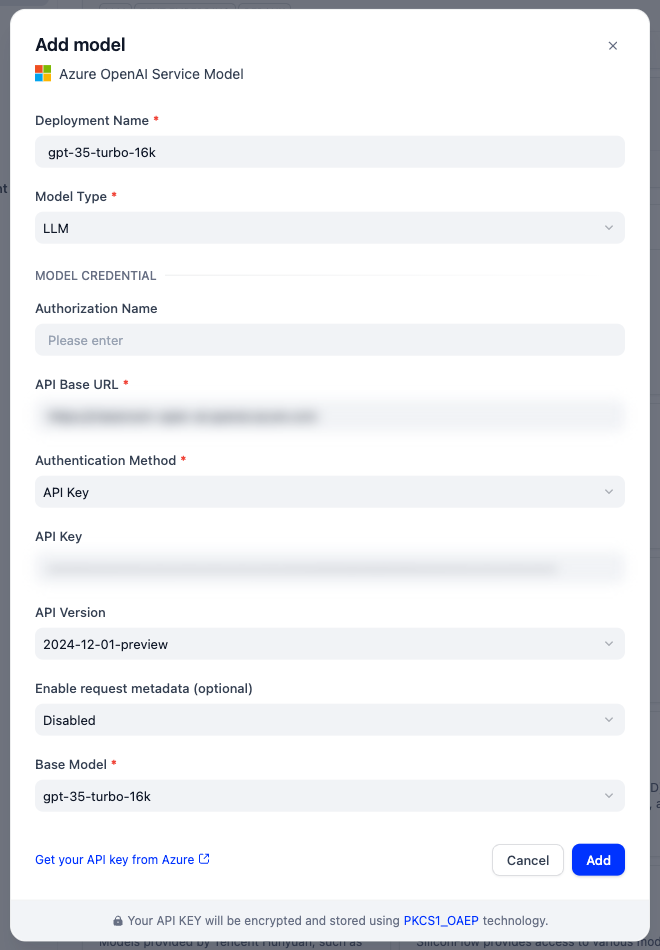
📋 Configuration Values
Use the credentials provided earlier to configure the model:
| Field | Value |
|---|---|
| Deployment Name | gpt-35-turbo-16k |
| Model Type | LLM |
| API Base URL | the Endpoint up to .azure.com, e.g. https://<resource>.openai.azure.com (drop /openai/deployments/…) |
| Authentication Method | API Key |
| API Key | (paste your key) |
| API Version | 2024-12-01-preview |
| Base Model | gpt-35-turbo-16k |
3. Add Embedding Model
🔧 Configuration Steps
Add models to your Azure OpenAI Service and configure using the provided credentials.
📸 Add Model Interface
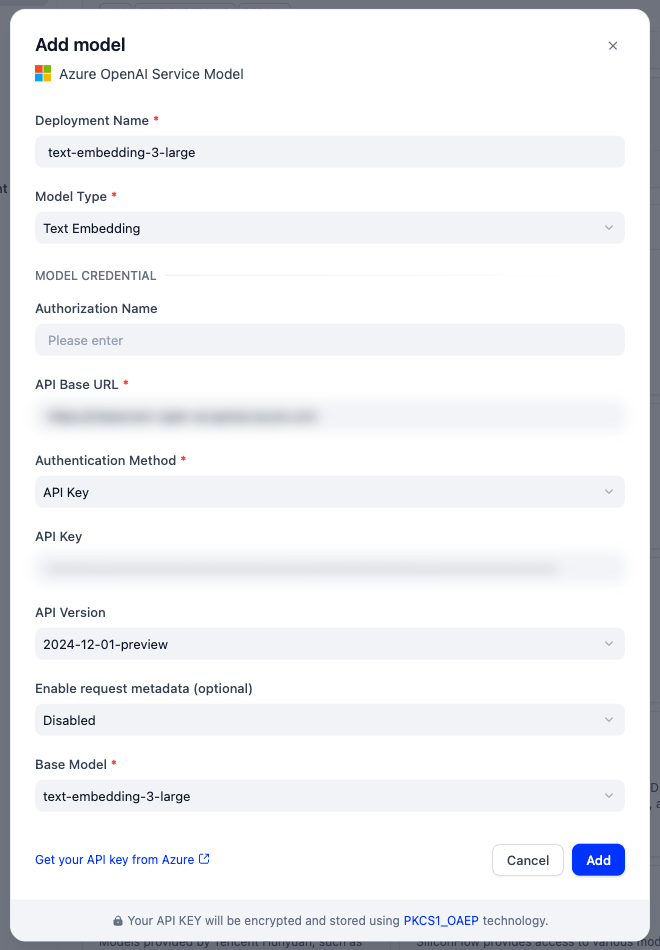
📋 Configuration Values
Use the credentials provided earlier to configure the model:
| Field | Value |
|---|---|
| Deployment Name | text-embedding-3-large |
| Model Type | Text Embedding |
| API Base URL | the Endpoint up to .azure.com, e.g. https://<resource>.openai.azure.com (drop /openai/deployments/…) |
| Authentication Method | API Key |
| API Key | (paste your key) |
| API Version | 2024-12-01-preview |
| Base Model | text-embedding-3-large |
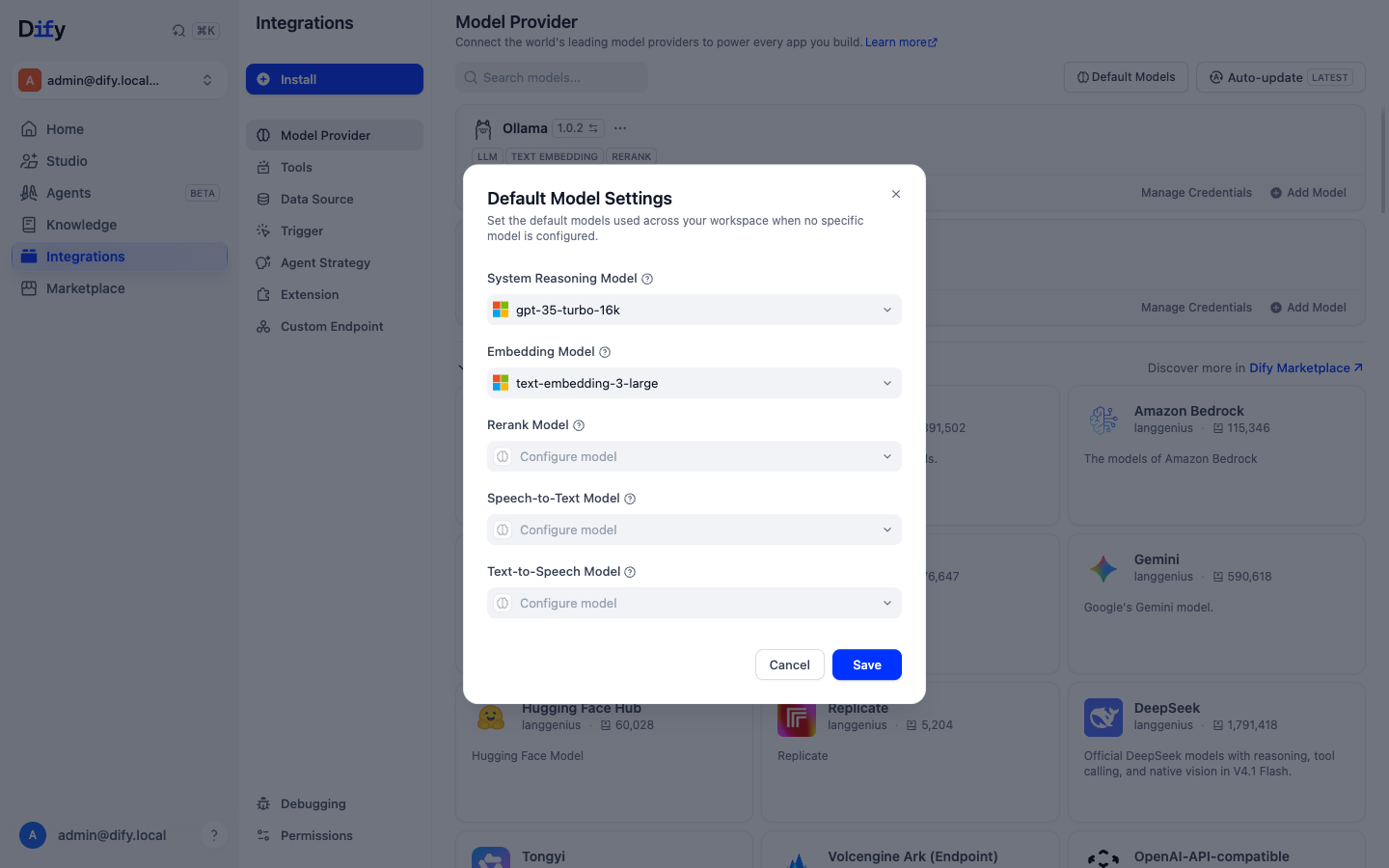
4. Configure Default Models
🔧 Configuration Steps
- Click the Default Models button at the top of the Model Provider page
- Select gpt-35-turbo-16k as the System Reasoning Model and text-embedding-3-large as the Embedding Model
- Click Save
We won't use the Rerank, Speech-to-Text, or Text-to-Speech models in this exercise.
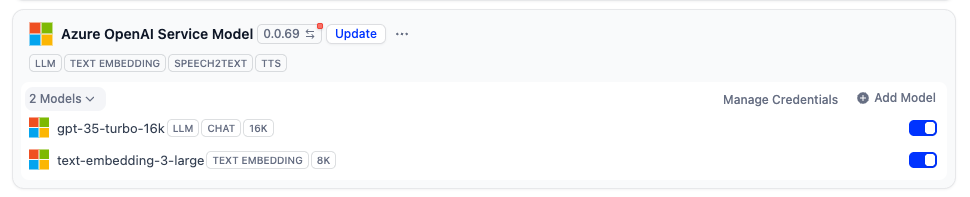
🎉 Success! Your LLM is Connected
You should now see both models configured in your Dify instance
🤖 Step 5: Create Your First Workflow
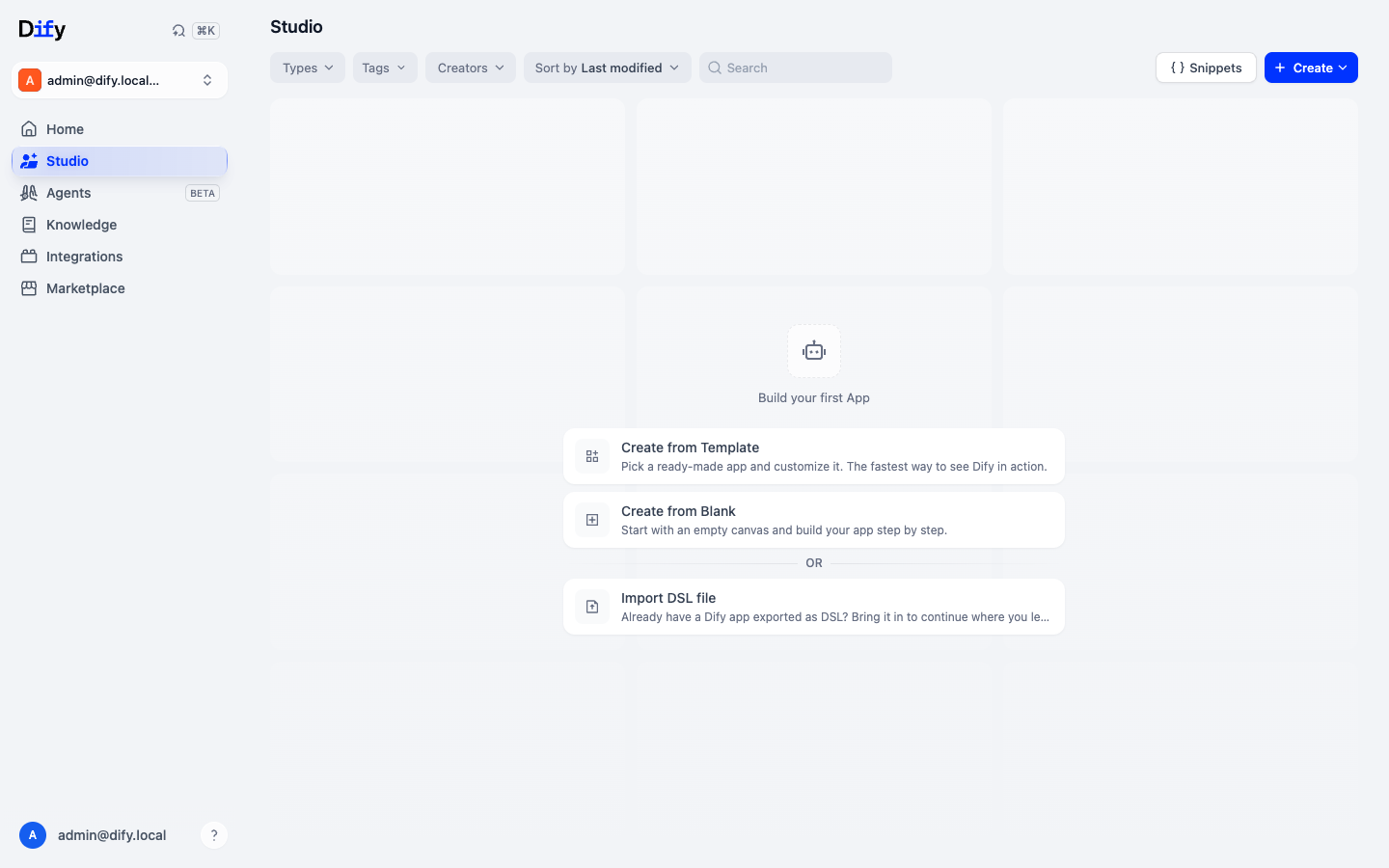
1. Create From Blank
Click Studio in the left sidebar, then Create from Blank:
 Studio with no apps yet (click to expand)
Under Choose an App Type, select Workflow
Give your app a name and an optional description, then click Create
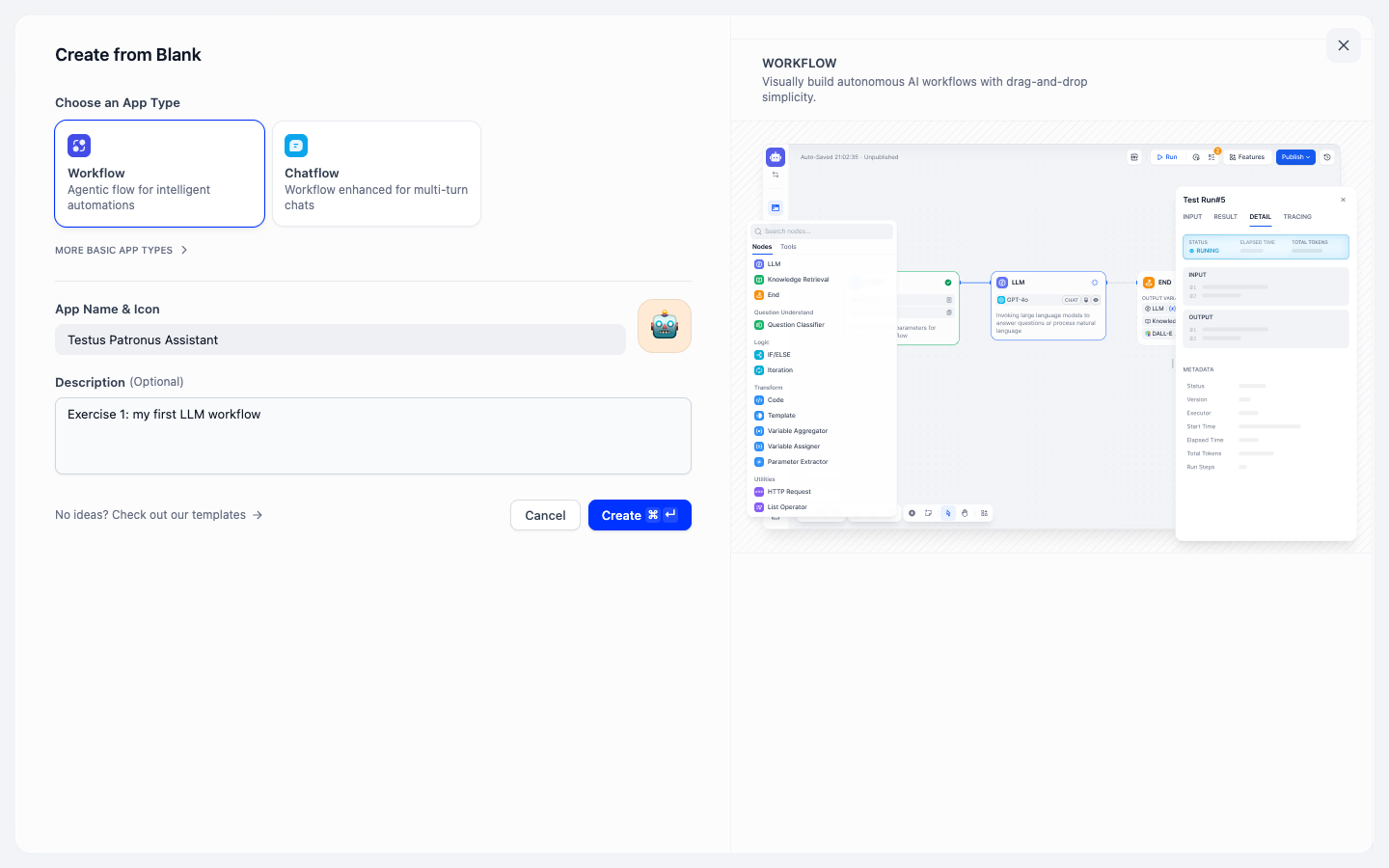 Workflow selected, with name and description (click to expand)
2. Setup Query Input
🔧 Input Configuration Steps
A new workflow opens with an empty Workflow Start node and a Pick a start node panel. Choose how the workflow starts, then add the input field that will receive user questions.
In Pick a start node, select User Input. The start node becomes USER INPUT and its settings panel opens on the right
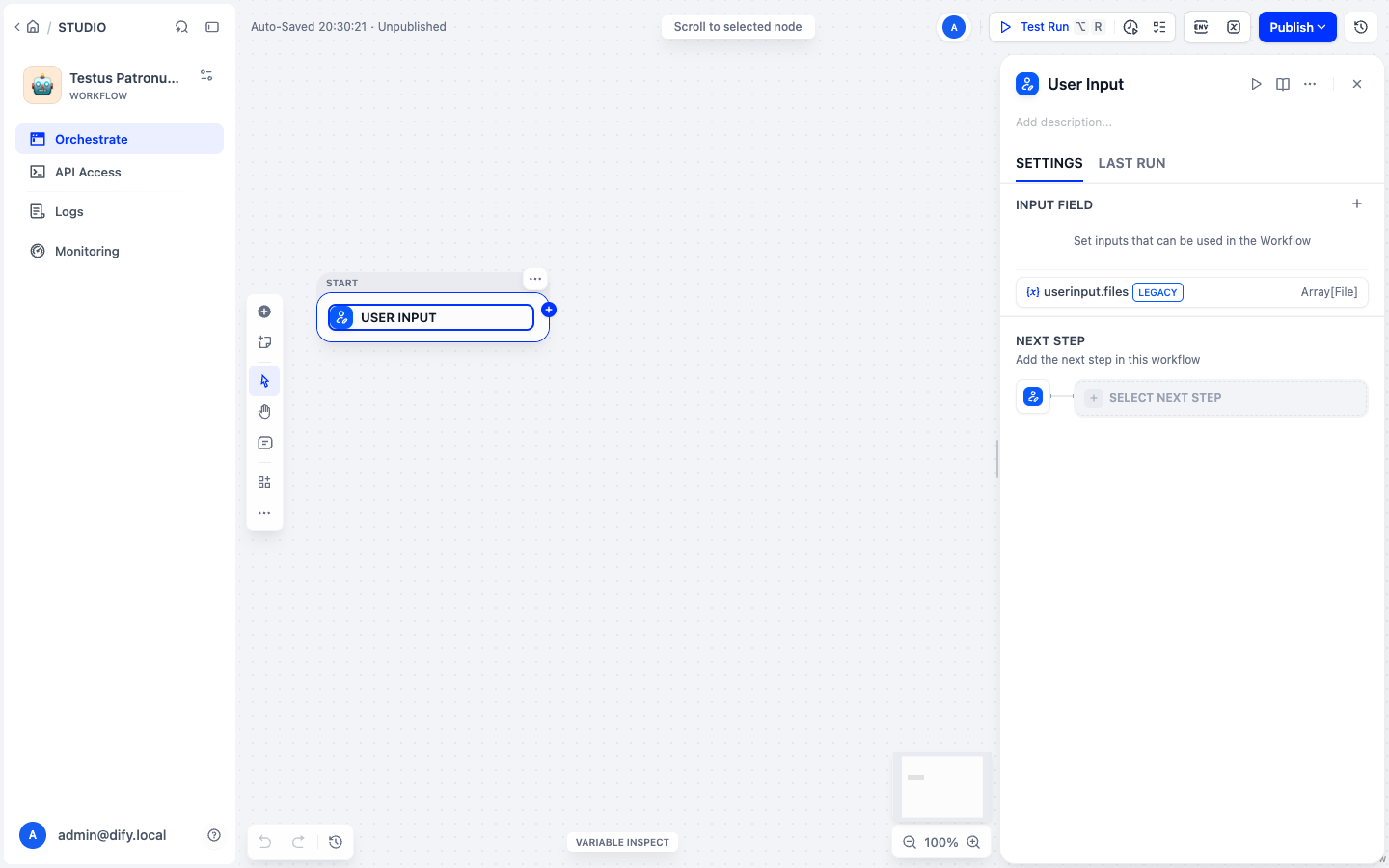 The User Input start node and its settings panel (click to expand)
Click the + next to INPUT FIELD and configure the field:
- Field Type: Short Text
- Variable Name:
query(the Label Name fills in automatically) - Max Length:
200 - Click Save
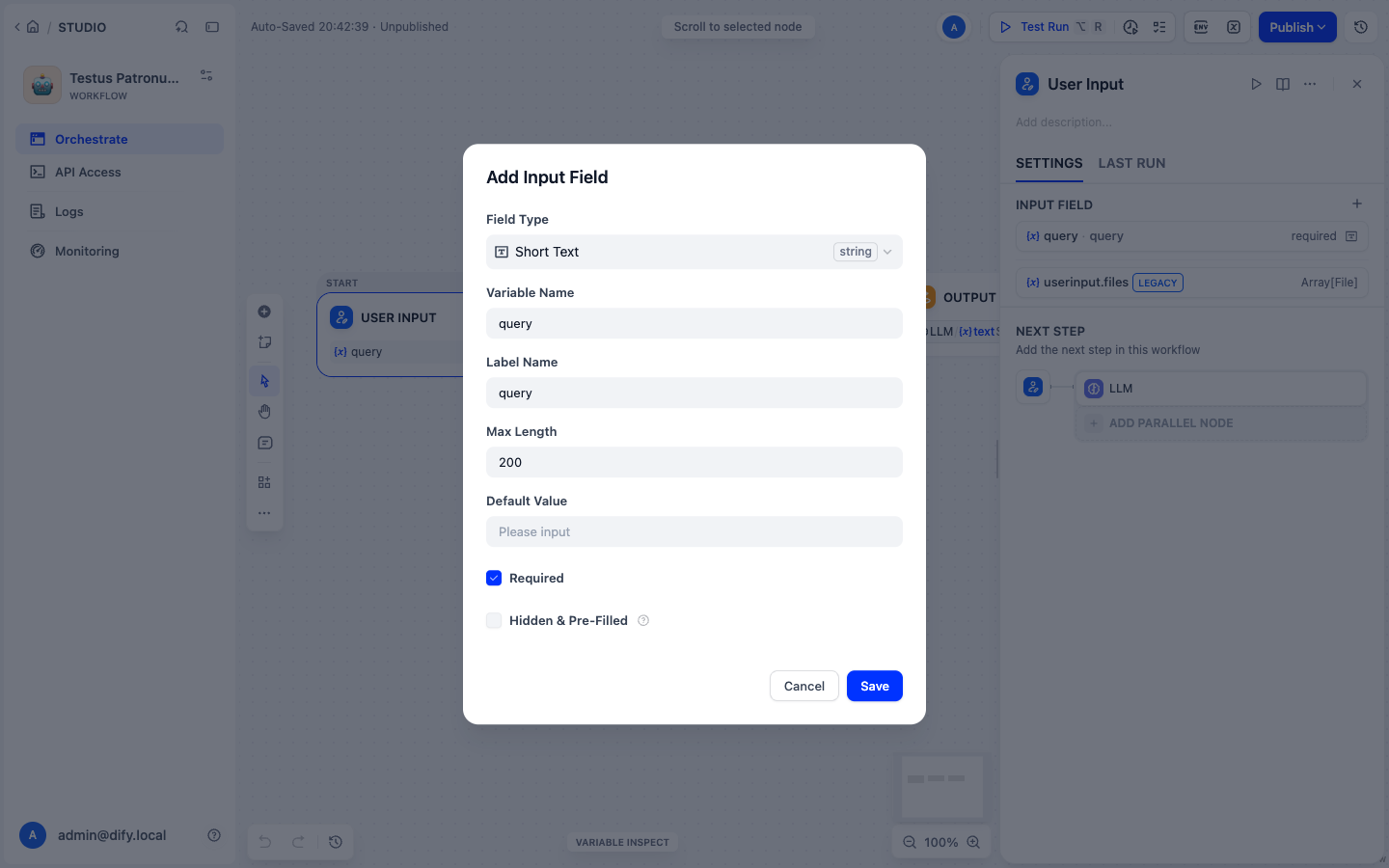 Add Input Field dialog (click to expand)
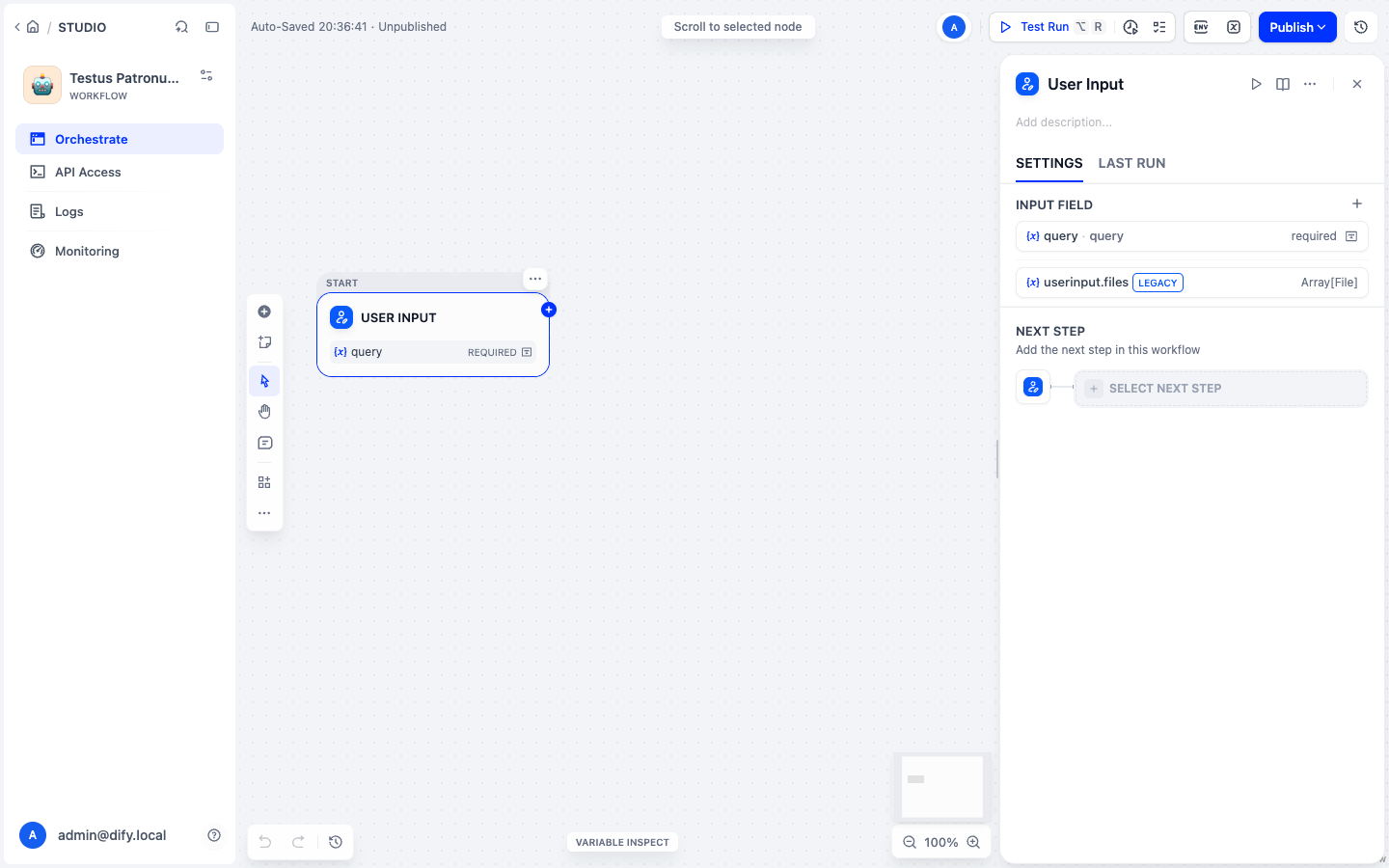 The User Input node now exposes query (click to expand)
🧠 Note: userinput.files (marked LEGACY) is a built-in variable that Dify adds to every User Input node. You can ignore it.
3. Add LLM Block
🧠 LLM Configuration Steps
Add and configure the LLM block that will process user queries and generate responses.
Add the LLM block: In the User Input panel, click Select Next Step (or the + on the right edge of the node) and choose LLM
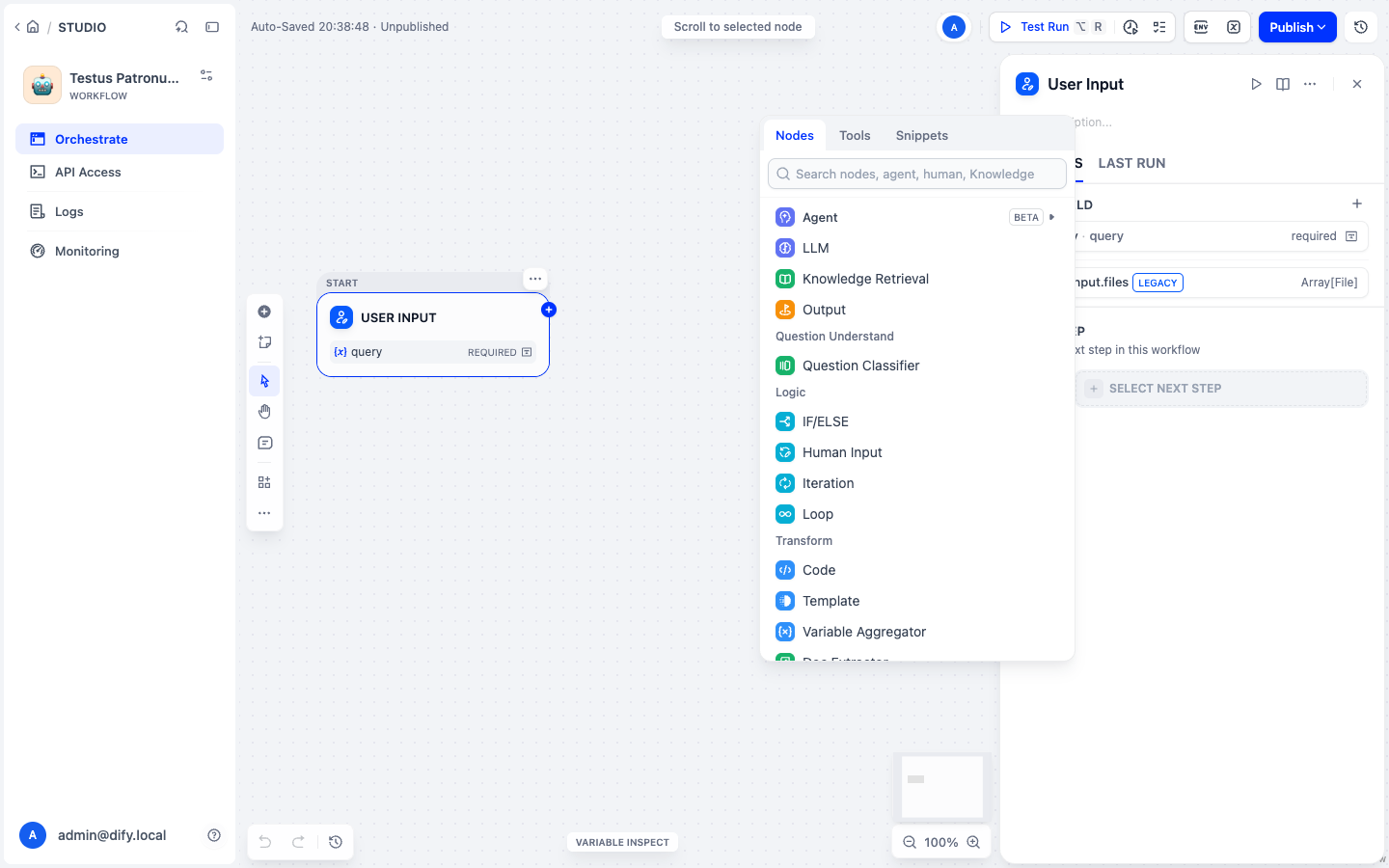 Choose LLM from the node picker (click to expand)
Model: check that gpt-35-turbo-16k is selected. Select it from the dropdown if it isn't.
Context: click Set variable and choose User Input → query
Write the SYSTEM prompt: This tells the AI how to respond. Type
{(or click {x}) to insert the Context block at the end💡 Example System Prompt:
"Answer in a clean, professional tone. Be concise but precise. Context:
Context"Add the USER message: Click + Add Message below the SYSTEM box. A USER message appears. In it, type
{and insert User Input → query. This is what the user is asking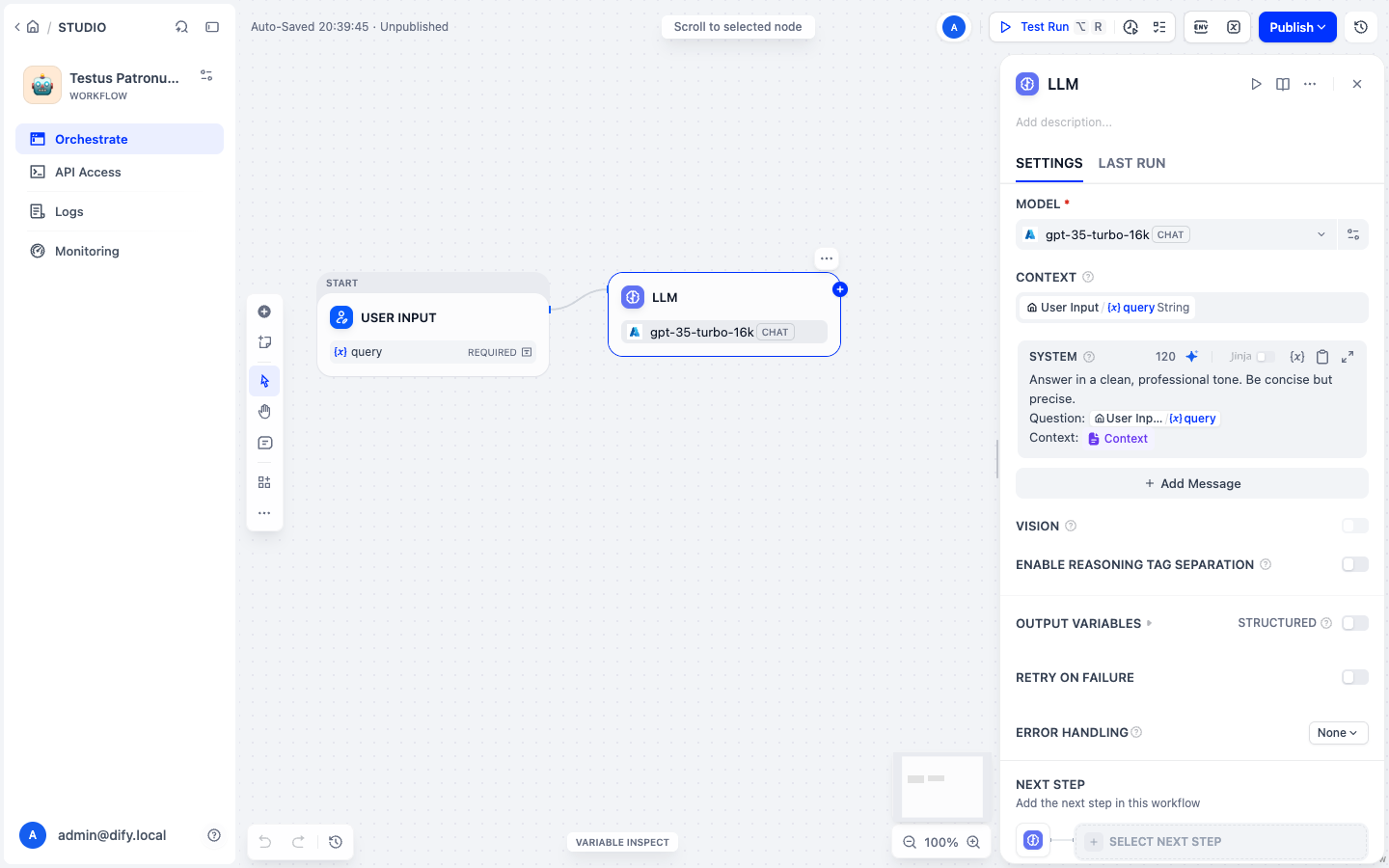 LLM node with model, context, and the SYSTEM prompt. Use + Add Message to add the USER message holding query (click to expand)
Why a separate USER message? Chat models expect instructions in the SYSTEM message and the question in a USER message. Azure GPT still answers if the question is inside the system prompt, but many open models (such as Llama 3.2 in Exercise 1B) only reply to a USER turn and return an empty answer otherwise.
4. Add Output Block
🏁 Final Configuration
Complete your workflow by adding an Output block that returns the LLM response.
Add an Output block: In the LLM panel, click Select Next Step and choose Output
Configure the output: Click the + next to OUTPUT VARIABLE, name it
text, and set its value to LLM → text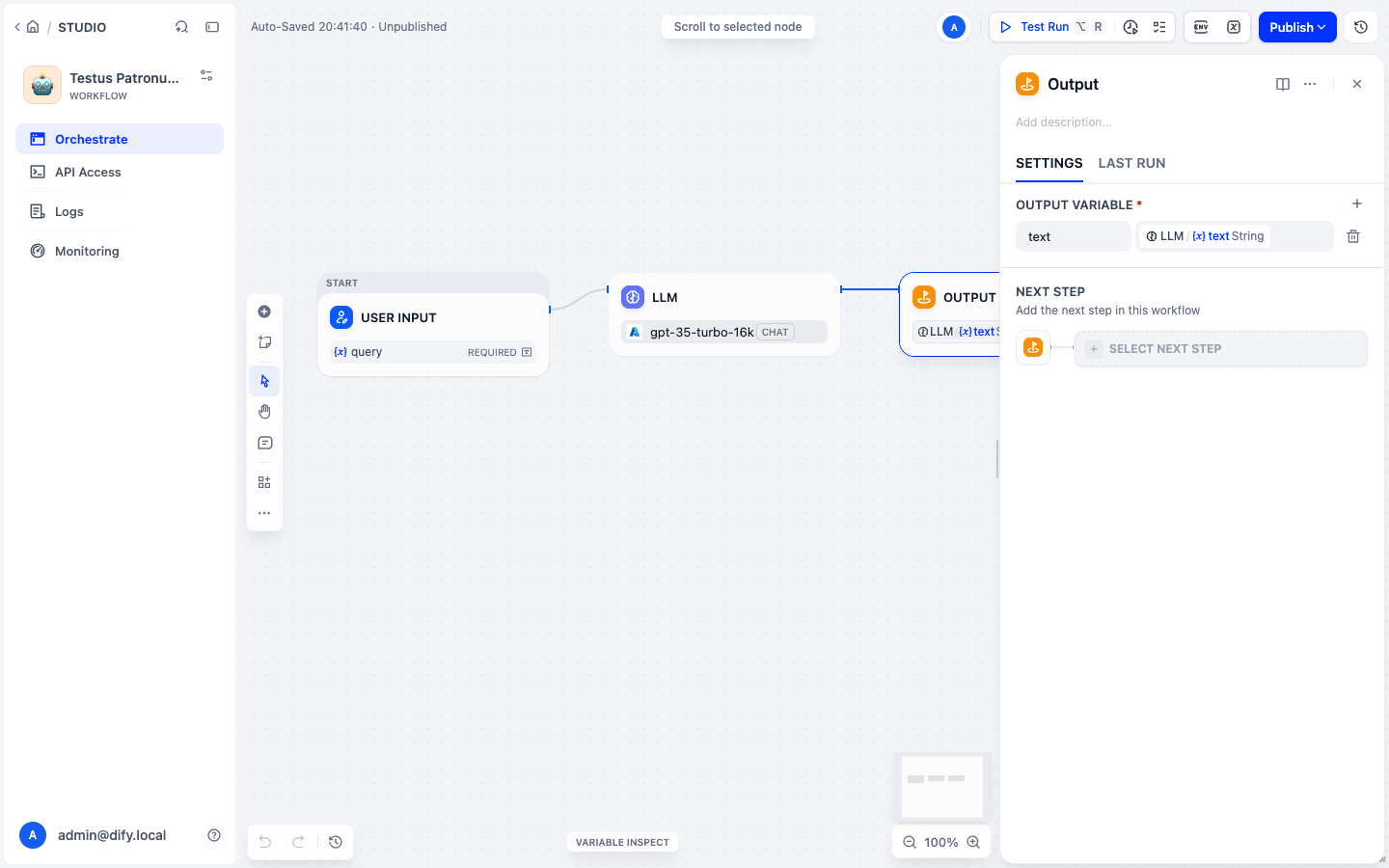 Output node returning the LLM text (click to expand)
🧠 Auto-save: Dify saves your draft automatically; the top bar shows Auto-Saved and the time. You don't need to publish the workflow for Test Run.
🧪 Run and Debug
🧪 Testing Your Workflow
Test your workflow to ensure everything is working correctly and see how it processes queries.
🚀 Step 1: Run Your Workflow
Click "Test Run" in the top-right corner of your workflow
Input a test question and click "Start Run"
💡 Try This Test Question:
"What is the difference between unit and integration testing?"
🎉 Expected Results
You should get a response from your magical assistant! The LLM will process your question and provide an answer.
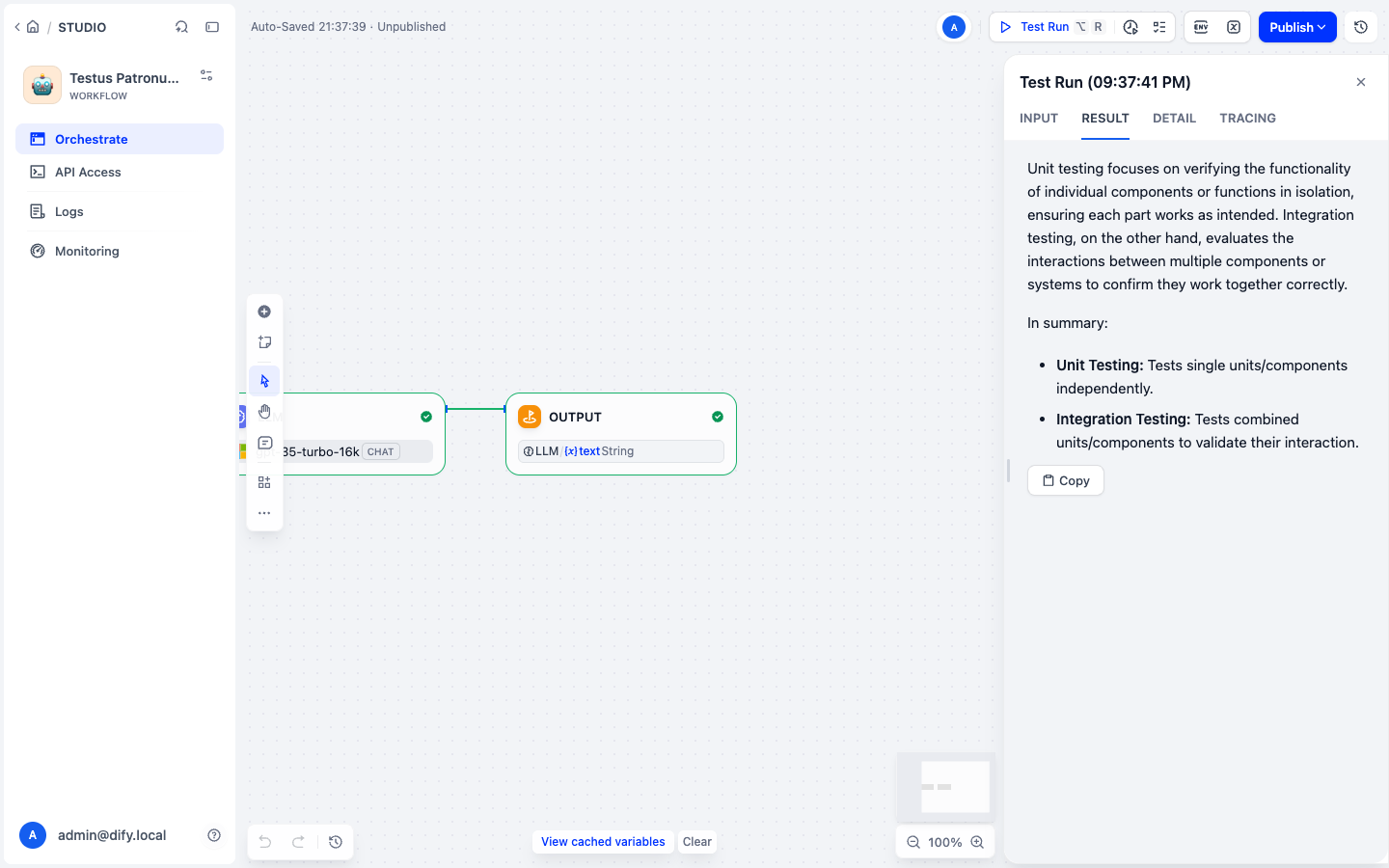
🔍 Step 2: Debug and Trace
Check the Tracing tab for a detailed breakdown of what your chatbot did:
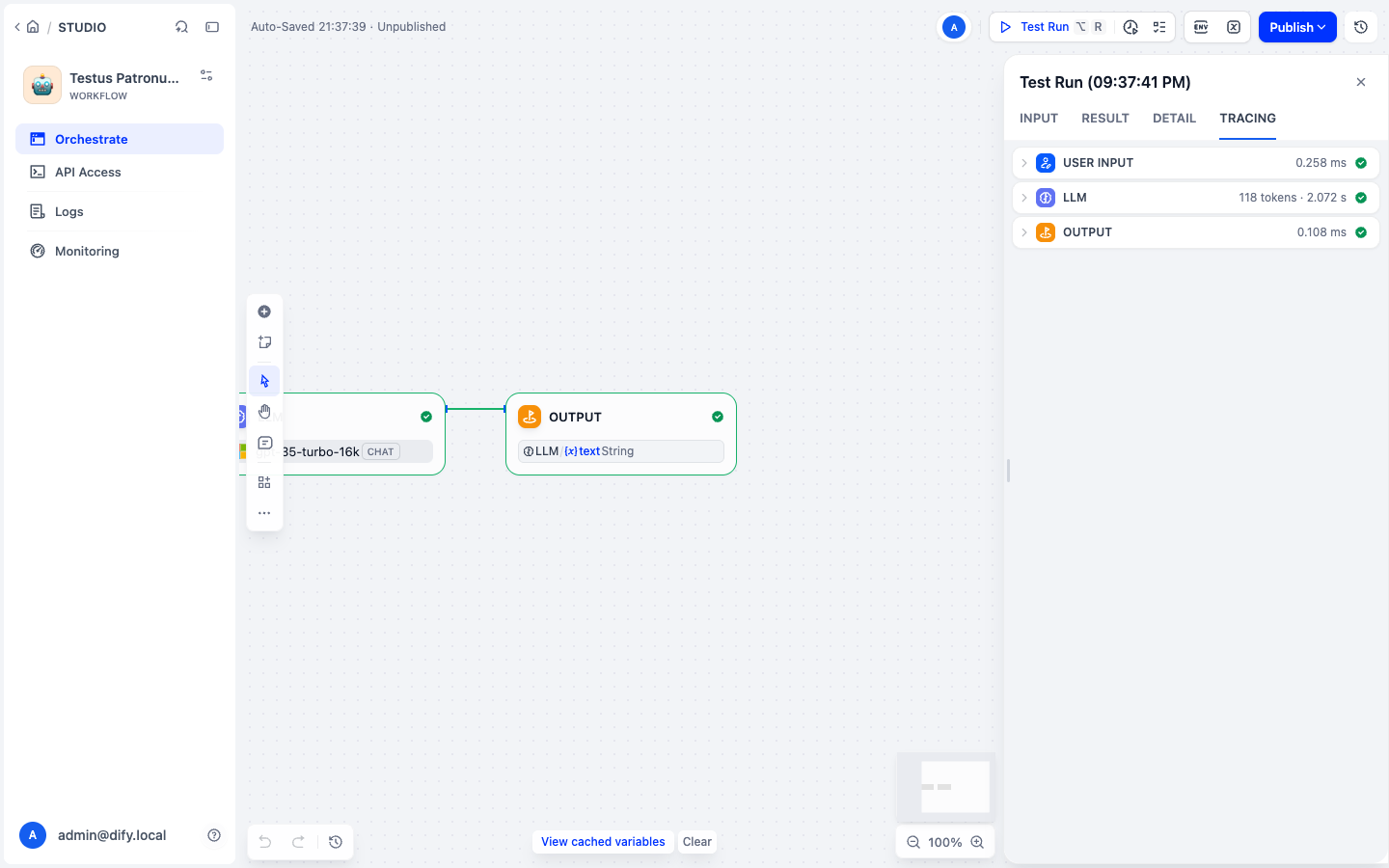
🧠 Pro Tip: The tracing tab shows you exactly how your workflow processed the input, including token usage and response generation steps.
What you'll find: an interactive 3D walkthrough of a GPT model. You can follow a short piece of text step by step through every layer, from the input to the predicted next token. Start with the small nano-gpt model; the same structure scales up to GPT-3.
What to look for: open the Embedding chapter. Each input token is swapped for a long list of numbers, its embedding, and from then on the model works only with those numbers. At the end (Softmax) the model outputs a probability for every possible next token and picks one. Your Dify answer was built this way, one token at a time.
Why it matters later: remember the embedding step. In Exercise 2 a separate embedding model does the same thing to whole Jira issues, so your assistant can search them by meaning.
🎛️ Step 3: Try It — Tune the LLM
Now that the workflow runs, see how the model's parameters change its answers. Open the LLM node and click the model name to open its parameter settings:
- Temperature: how much randomness the model uses. Low values (
0.2-0.4) give consistent, repeatable answers, which is what you want for testing tasks. Higher values give more varied, creative answers. - Top P: another way to limit randomness. Keep it at
0.8-1.0and don't change it together with Temperature. - Max Tokens: caps the answer length. This keeps cost down and cuts rambling answers.
What you'll find: a real GPT-2 model running in your browser. It shows how a sentence flows through the model and, in the Probabilities column on the right, the chance of each candidate next word. The top bar has sliders for Temperature and top-k / top-p sampling.
What to look for: pick a sentence from the Examples menu and watch the probability bars. Drag Temperature all the way down: the top word takes almost all the probability, so the model picks the same word every time. Drag it up: the bars even out and less likely words get picked more often. That's why low temperature gives repeatable answers and high temperature gives varied ones, which you're about to see in Dify.
Heads-up: the Examples work straight away. Typing your own sentence downloads the 600 MB model first, so save that for a good connection.
What you'll find: a tokenizer viewer. Paste any text and it colours each token and counts them, for the tokenizers used by GPT models.
What to look for: paste the answer from your test run. Tokens are often pieces of words, not whole words, and in English one token averages about 4 characters. So Max Tokens: 100 allows roughly 75 words, and the cost of every run is counted in tokens. Try a technical term like deserialisation and see it split into several tokens.
🧪 Experiment:
- Set Temperature to
0.3and run the same test question twice. Compare the two answers. - Set Temperature to
1.0and run it twice again. How different are the answers now? - Set Max Tokens to
100and run it once more. What happens to the answer?
Baseline for the rest of the workshop: Temperature 0.3, Top P 0.9, and a moderate max token cap. When you tune later, change one parameter at a time and re-run the same questions.
🧪 Exercise 1B (Optional): Connect a Local Model
You have just built and run a workflow against Azure OpenAI. This exercise runs the same workflow against a model that is not a managed cloud API, so you can compare quality, latency and cost with everything else held constant.
Keep your Azure setup. It stays your known-good baseline, and every later exercise still works against it.
🧭 Why compare models?
There is no single best model. The right choice depends on the task:
| Task | Recommended model profile | Why |
|---|---|---|
| Requirement Q&A in chatbot | Balanced chat model (good quality/cost) | You need consistent answers with moderate latency. |
| Knowledge retrieval embeddings | High-quality embedding model | Embedding quality strongly impacts retrieval relevance. |
| High-volume test experimentation | Lower-cost/faster model | Faster feedback loops while iterating prompts and flows. |
| Sensitive/private workloads | Local or self-hosted model | Helps meet data residency and control constraints. |
The last row is what this exercise lets you try. To compare hosted models on quality, latency, and cost, Artificial Analysis is a useful starting point. Treat it as a discovery aid, and confirm the model card, license, context limit, and your own representative prompts before choosing.
🎯 Objective
Configure Dify's official Ollama provider against a model your classroom runs, then run your Exercise 1 workflow on it and compare.
🏗️ Where the model actually runs
Your classroom runs one shared Ollama service for the whole session, on its own machine. It is not installed on your Dify instance, and it is not on your laptop.
That machine downloads the model once for the entire room rather than once per person, which is why this works on conference Wi-Fi at all. You reach it over HTTPS with a token that belongs to your seat.
   Your Dify instance ─┐
                       ├─► HTTPS + your token ─► auth proxy ─► Ollama ─► model
   Another learner's ──┘                                      (private port)
You get an endpoint, a model name and a token. You do not get shell access to that machine, and you do not need it.
Two paths
| Path A — Classroom model | Path B — Your own laptop | |
|---|---|---|
| Who runs it | Your instructor | You |
| Setup time | ~2 minutes | ~20 minutes |
| Needs a good network | No | Yes, for the model download |
| Use when | You are in the workshop | You are self-studying later, or the classroom model is unavailable |
Path A is the classroom path. Use it unless your instructor says otherwise.
🅰️ Path A: The classroom shared model
1. Find your model credentials
Go back to the assignment page where you got your Dify URL and your Azure credentials. Below the Azure cards there is a Classroom Local Model (Exercise 1B) card. These are the fields you need:
| Field | What it is | Example shape |
|---|---|---|
| Base URL | The authenticated HTTPS endpoint | https://llm-<session>.<classroom domain> |
| Model Name | The exact model tag to type into Dify | llama3.2:3b |
| API Key | Your personal seat token | a long hex string |
| Valid Until | When your token expires | a timestamp |
⚠️ Your token is yours. It identifies your seat. Do not paste it into a shared document, a screenshot or a chat channel. If you think it leaked, tell your instructor and they will revoke it — your Dify provider will start failing immediately, which is the point.
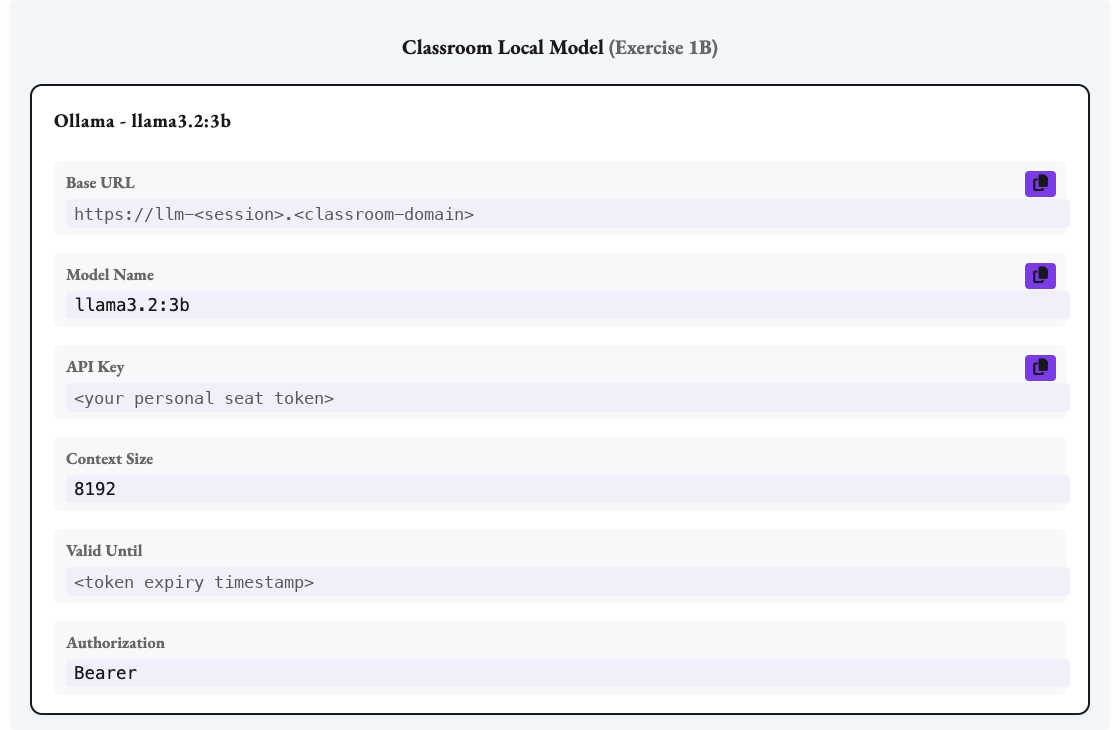
The card also shows the Context Size (8192) and the Authorization scheme (Bearer) to enter in Dify.
If you do not see that card, your session is running without a shared model. Use Path B, or stay on Azure — nothing later in the workshop depends on this exercise.
2. Install the Ollama provider
- Open Integrations → Model Provider.
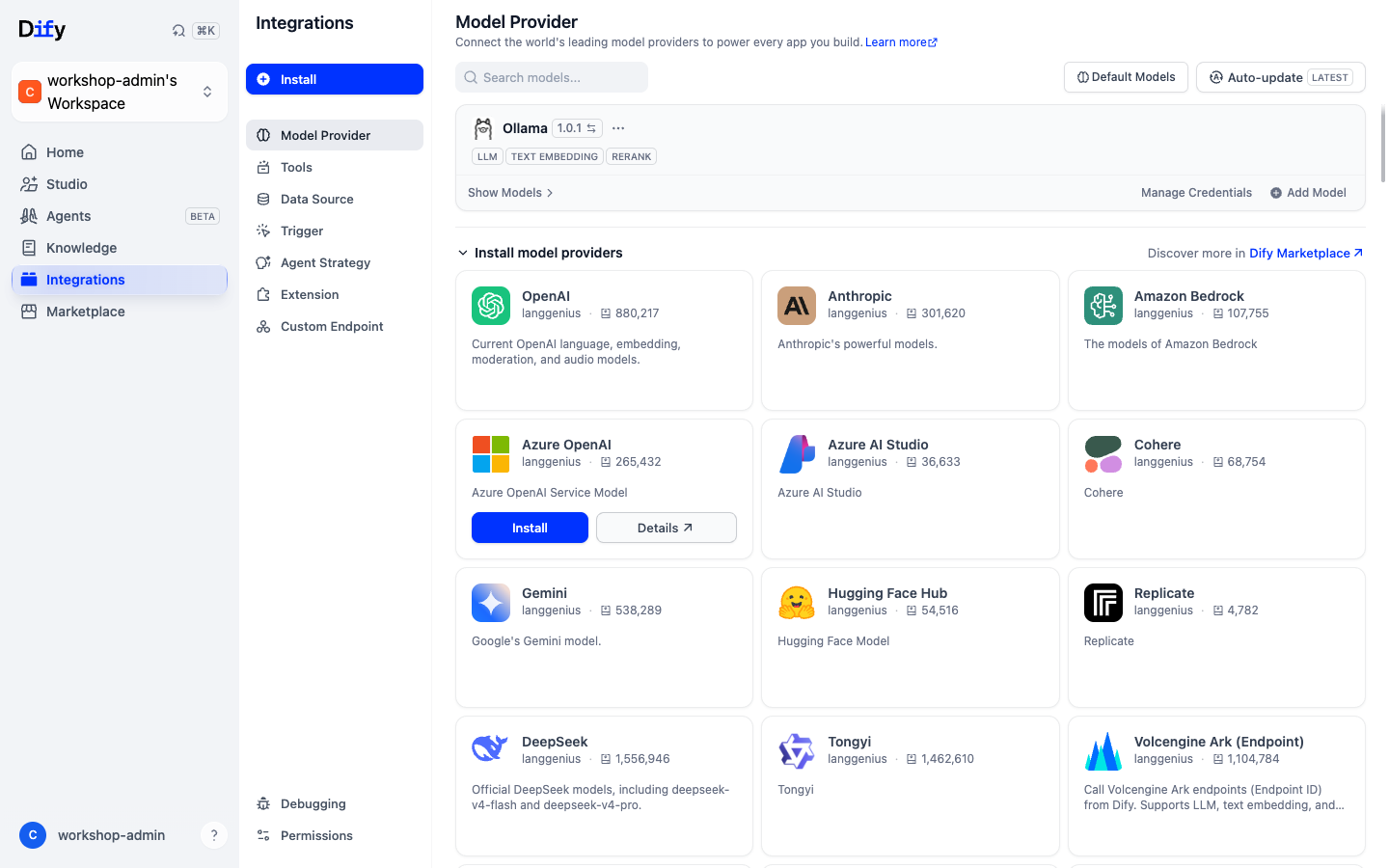
- Install the official Ollama provider from the provider cards.
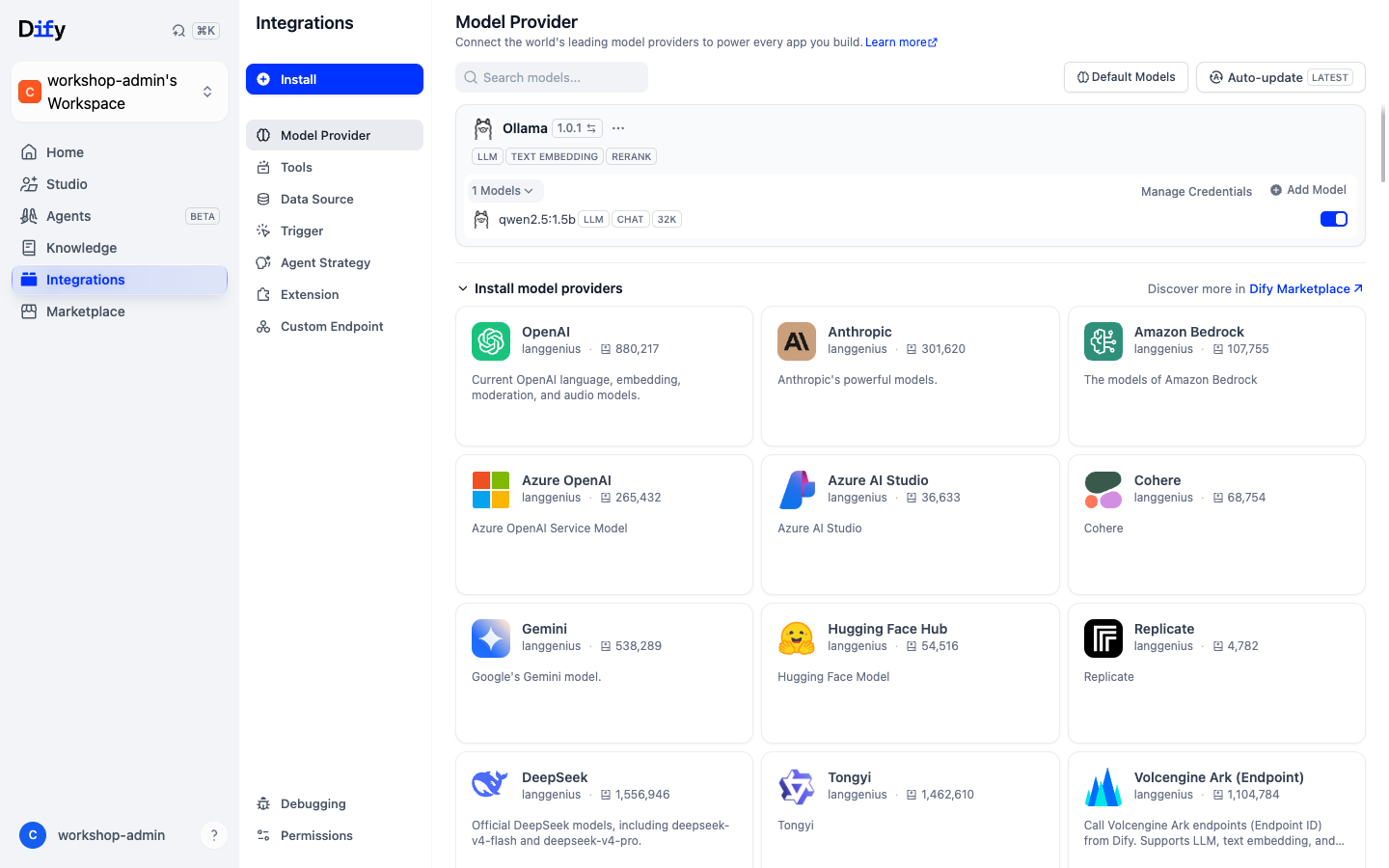
- Confirm it is installed before registering a model:
3. Add the classroom model
Select Add Model and fill in the form from your credential card:
| Dify field | What to enter |
|---|---|
| Model Type | LLM |
| Model Name | the Model Name from your card, exactly — e.g. llama3.2:3b |
| Base URL | the Base URL from your card, with no trailing path |
| Authorization Name | Bearer |
| API Key | your seat token |
| Model context size | 8192 |
| Upper bound for max tokens | 1024 |
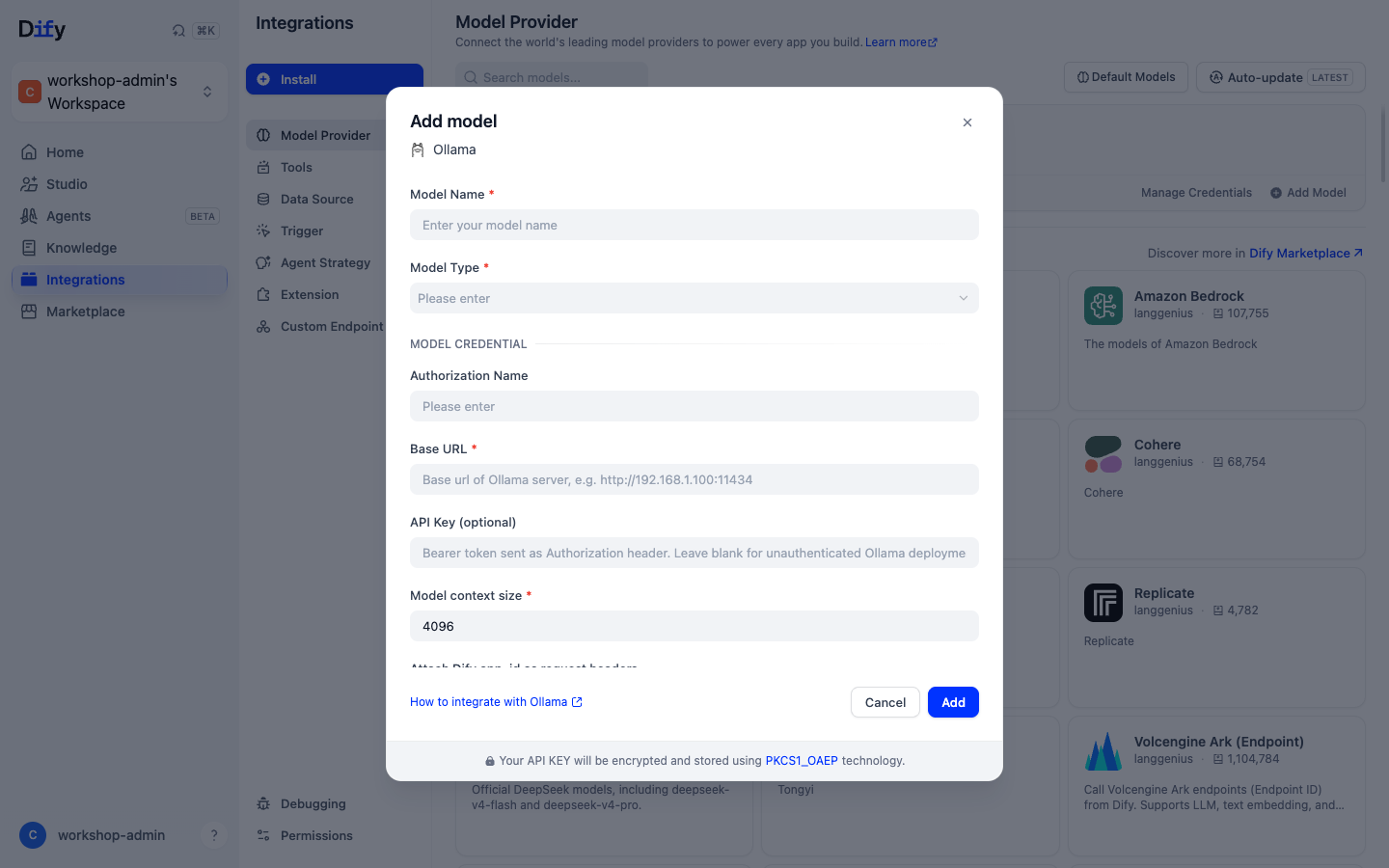
Save. The model should appear under the Ollama provider:
Optional: check the endpoint yourself before configuring Dify
Two commands tell you whether the problem is your token or your Dify form. Replace the placeholders with your own values:
# Without a token: must return 401.
curl -s -o /dev/null -w '%{http_code}\n' https://YOUR-BASE-URL/api/tags

# With your token: must return 200 and list the model.
curl -s -H "Authorization: Bearer YOUR-TOKEN" https://YOUR-BASE-URL/api/tags
401 on the second command means the token is wrong, expired or revoked. A connection error means the endpoint is wrong or the service is down — ask your instructor rather than retrying harder.
4. Run the same workflow
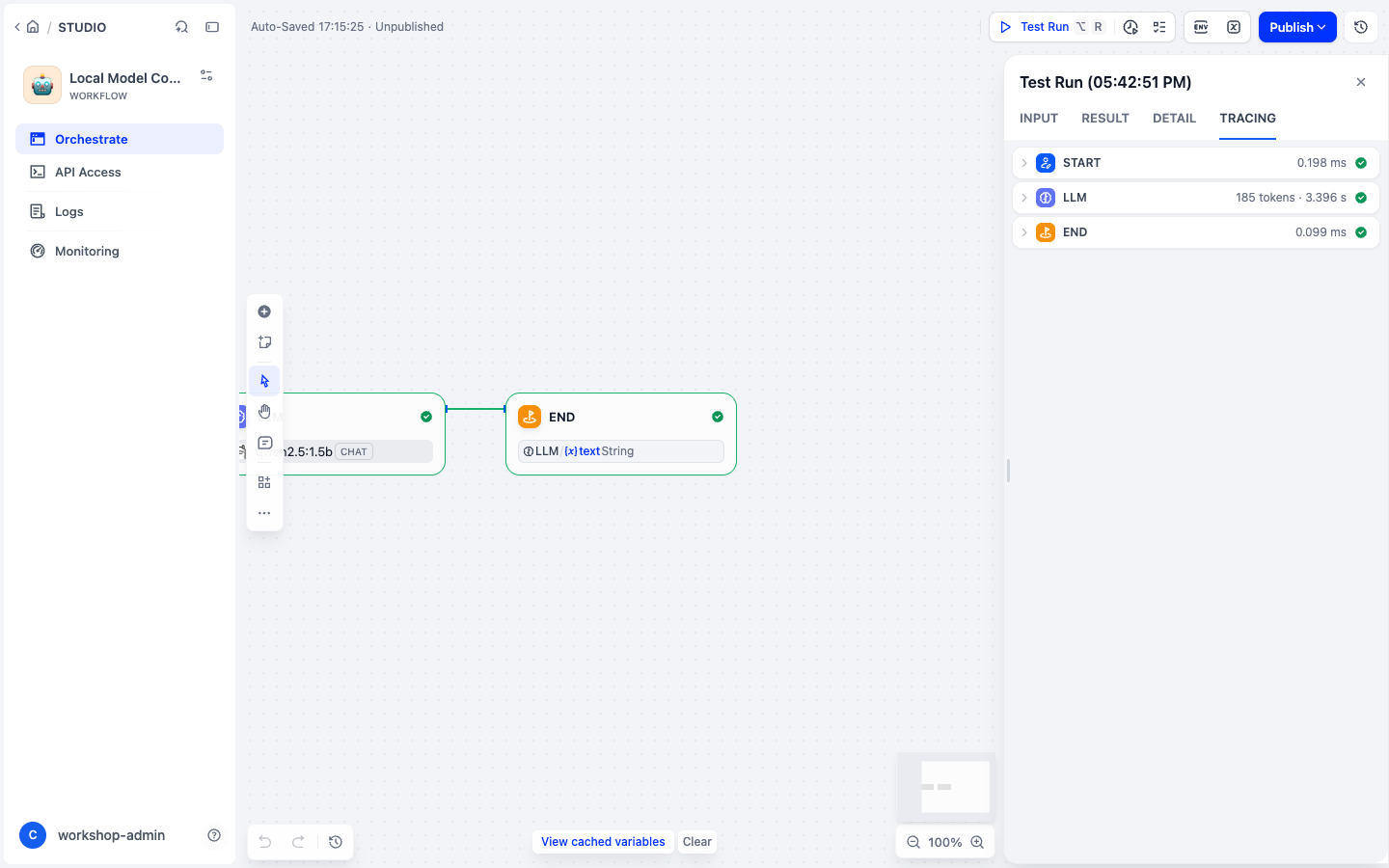
Open the workflow you built in Step 5, select the LLM node, and switch its model from Azure OpenAI to the Ollama model. Change nothing else — same prompt, same inputs.
Before you run it, check that the node has a USER message holding query, as set up in Step 5. If your question is only inside the SYSTEM prompt, the local model finishes instantly with an empty answer. See Empty answer under Troubleshooting below.
5. Compare against Azure
Switch the node back to Azure, run the same prompt again, and record both:
| Classroom model | Azure OpenAI | |
|---|---|---|
| Time to first token | ||
| Total response time | ||
| Did it follow the format you asked for? | ||
| Did it invent anything? | ||
| Who can see your prompt | your classroom only | Azure |
| Marginal cost per request | none — the host is already paid for | per token |
The comparison is only meaningful if the prompt and the retrieval context are identical. Change one thing at a time.
What you should expect. A 3-billion-parameter model on a shared CPU is noticeably slower and less reliable at following instructions than a hosted frontier model. That is the lesson, not a fault: you are seeing what "local and private" actually costs in latency and quality, so you can decide when that trade is worth making.
🅱️ Path B: Your own self-hosted model (optional)
Use this when you are studying on your own, or when the classroom model is unavailable and you would rather not use Azure.
- Ollama on the same host or network as Dify: install Ollama, run
ollama pull qwen2.5:1.5b, and use the Ollama provider's native endpoint. - Ollama on your laptop with remote Dify: do not enter
localhost. Dify resolves that name inside its own container, not on your machine. Use an authenticated HTTPS gateway or a private network route Dify can reach. - LM Studio: start its local server mode and use its documented OpenAI-compatible endpoint, only when Dify can reach it.
- Self-hosted vLLM/TGI: expose a private, authenticated endpoint reachable from the Dify runtime network.
Never expose Ollama's unauthenticated port to the internet. It has no authentication of its own, and its API can pull and delete models. Put TLS and authentication in front of it, and use the smallest model and context window that meet the goal.
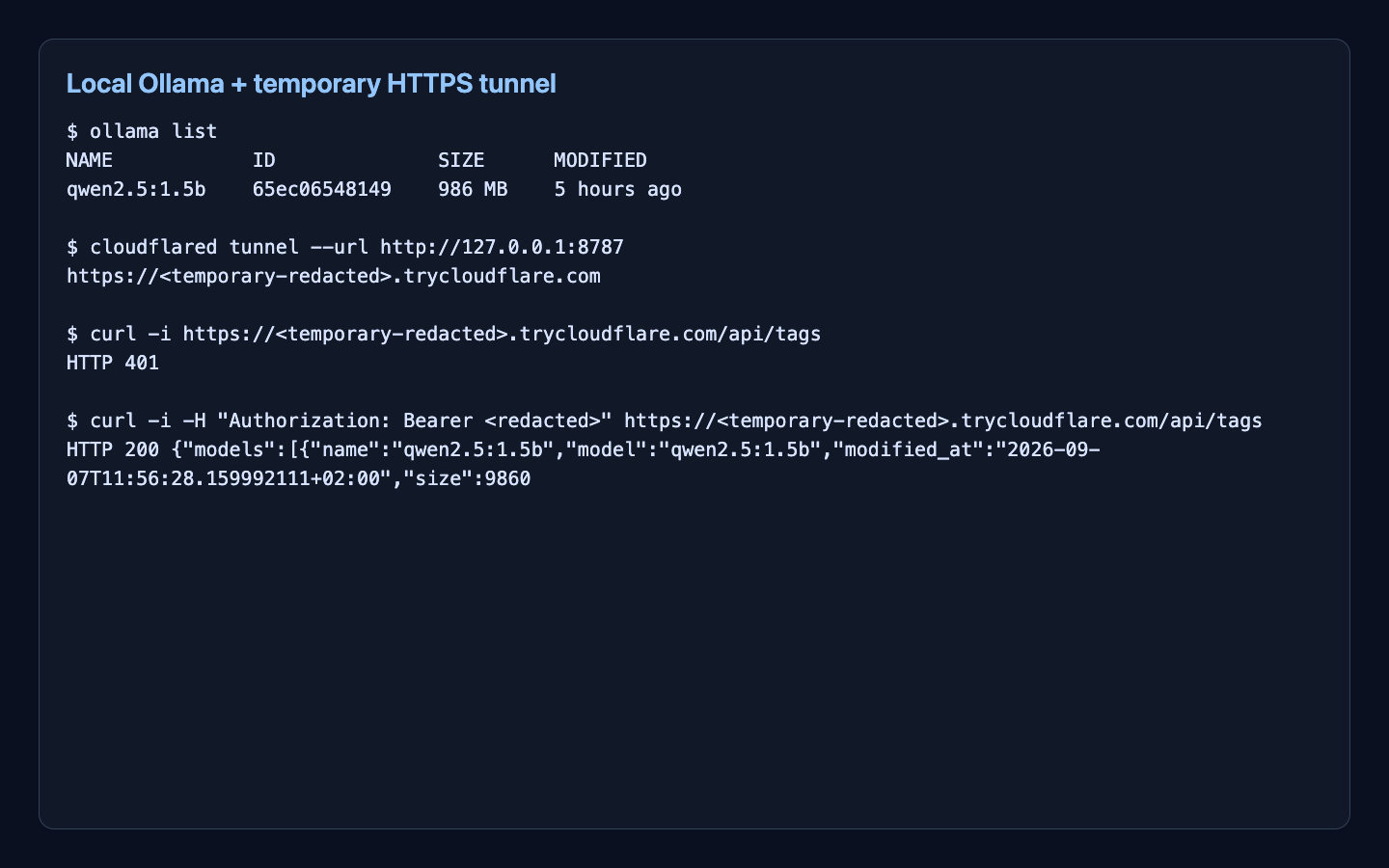
Example: exposing a laptop Ollama through an authenticated tunnel
ollama serveollama pull qwen2.5:1.5b- A loopback-only proxy on
127.0.0.1:8787forwarding to Ollama, rejecting requests without a bearer token cloudflared tunnel --url http://127.0.0.1:8787- Two checks: unauthenticated
GET /api/tagsreturns401, authenticated returns200
Then register it in Dify exactly as in Path A step 3, using your own base URL, your own token and your own model tag.
Parameter starting points
| Parameter | Starting value | Adjustment signal |
|---|---|---|
| Temperature | 0.3 | Increase only if answers are too rigid. |
| Top P | 0.9 | Lower if output becomes noisy. |
| Max tokens | 512-800 | Lower to control latency on a shared host. |
| Timeout | 60-120s | CPU inference is slow; a short timeout looks like a broken model. |
🚦 When the classroom model is busy or down
The shared host serves the whole room, so you will occasionally meet its limits. These are expected and each has a specific meaning.
| What you see | What it means | What to do |
|---|---|---|
429 / "at capacity" | Too many people generating at once. Requests queue; past the queue limit they are refused. | Wait a few seconds and retry. Do not retry in a tight loop — it makes the queue worse for everyone. |
401 | Your token is wrong, expired, or was revoked. | Re-copy it from the assignment page. If it still fails, ask your instructor. |
| Very slow first response | The model was evicted from memory and is reloading, or the host is saturated. | Wait. The first request after an idle period legitimately takes much longer. |
502 / 503 / connection refused | The service is down or restarting. | Switch your LLM node back to Azure and carry on. |
The classroom model is never a blocker. Every exercise in this workshop works against Azure. If the local model misbehaves, switch the LLM node back and keep going — you can return to Exercise 1B later.
🧹 Cleanup
Switch back to Azure before moving on:
- Open the LLM node in your workflow and switch the model back to your Azure deployment.
- Check Integrations → Model Provider → Default Models still points at Azure for the System Reasoning Model.
If you used Path B, stop your tunnel and your local Ollama (ollama stop, or quit the app). A tunnel left running is an authenticated route into your laptop.
✅ Completion Check
This exercise is complete when:
- You ran at least one prompt through your chatbot using the local model.
- You switched back to Azure and ran the same prompt.
- You can state one concrete difference in latency and one in answer quality.
- You know what you would do if the local model stopped responding mid-demo.
🧯 Troubleshooting
- Empty answer, but the run shows SUCCESS (output
"text": "", about 1 completion token, well under a second): your LLM node only has a SYSTEM message. Local chat models such as Llama 3.2 answer a USER turn; with only a system message they end their turn straight away. Click + Add Message, choose USER, insertquerythere, removequeryfrom the system prompt, and run again. Azure hides this mistake, so the same prompt can work on Azure and fail locally. - 401 Unauthorized: re-copy the token from your assignment page — a trailing space is the usual cause. If it still fails, the token was revoked; ask your instructor.
- 429 / "at capacity": the shared host is saturated. Wait and retry once; do not loop.
- Connection failed: confirm the base URL matches your card exactly, including
https://and with no trailing path. On Path B,localhostmeans the Dify runtime, not your laptop. - Model not listed: the model name must match the tag exactly, including the part after the colon.
- Slow answers: expected on a shared CPU host. Reduce max tokens and keep retrieval chunk count small while tuning.
- Poor relevance: keep your embedding model quality high even when generation uses a smaller local model. Retrieval quality and generation quality are separate problems.
- Timeouts in Dify: raise the node timeout to 60-120s. CPU inference is genuinely slow, and a short timeout is indistinguishable from a broken model.
🎯 Exercise Complete! What's Next?
🎉 Congratulations!
You've successfully connected your LLM and created your first AI workflow!
✅ What You've Accomplished:
- ✅ Connected to Azure-hosted GPT models
- ✅ Configured both LLM and embedding models
- ✅ Created your first AI workflow
- ✅ Tested and traced the complete workflow
- ✅ Saw how Temperature and Max Tokens change the answers
🚀 Ready for the Next Challenge?
In Exercise 2, you'll learn about:
- 📚 Document chunking strategies for better RAG
- 🔧 Uploading Jira issues and technical documentation
- ⚖️ Comparing different knowledge base approaches
- 🧠 Preparing your chatbot for advanced RAG capabilities